A button press takes a short trip before the page changes. The keypad puts it on the CAN bus, the dash turns it into a channel, and Display Creator uses that channel’s value to decide which page or pop-up to show.
When a button seems to do nothing, one link in that chain is usually missing. Here’s how I set up each link on a C-series display such as the C127, and how I test it.
Get the button into the dash
MoTeC’s CAN keypads are designed to work with a MoTeC PDM, and their configuration is done in PDM Manager. There, each button you use is given a channel name, and that channel is true while the button is pressed.
The dash then has to receive the button. One route is to send the button channels from the PDM: its manual describes up to four user-defined CAN messages, each carrying up to eight channels, and the dash then needs a matching receive setup in Dash Manager. The other is for the dash to read the keypad’s own messages. In a reply on MoTeC’s support community about a C127, the suggestion was to load the Grayhill Keypad Button Rx template into the dash’s CAN receive setup, then select the received button channels for page up and page down. The page change itself is set up in the dash, not the PDM.
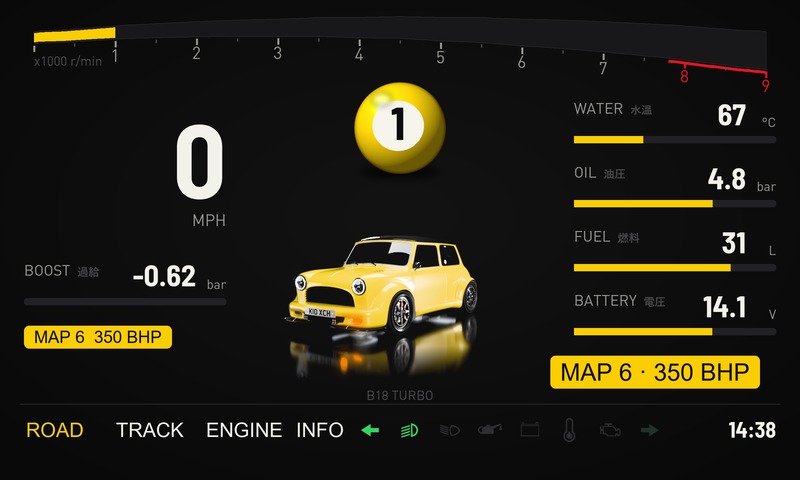
A keypad isn’t the only option. The C127’s digital inputs can take the external switches used to operate the display, and a switch read by the PDM or another CAN device can reach the dash like any other channel. On the Rover Mini, the car’s own Next and Mode buttons step through four pages.
Before touching the pages, connect to the dash, open Online → Monitor Channels in Dash Manager and check that each button channel changes when you press it. If it doesn’t, the problem is in the CAN setup rather than the design; the DBC channels guide covers that side.
Let Dash Manager keep the page number
With the display set to Internal Display (using Display Creator), Dash Manager’s Display Setup has a Page Selection tab; the C127 manual calls it the Display Creator Settings tab. It turns button presses into one number, the Display Page channel, which Display Creator reads.
Page settings in Dash Manager’s Display Setup
Setting
What it does
Number of Pages
The number of pages in the Display Creator project. Update it when you add a page.
Page Up Button and Page Down Button
The button channels that move to the next or previous page in numeric sequence. If Display Page is 3, page up makes it 4 and page down makes it 2.
Page Reset Button
A channel that returns the display to the default page.
Display Page
The output channel that controls the page shown. Add it to the Display Creator Channels list so it goes into the DBC.
Preserve Page
If ticked, the display returns after a power cycle to the last page shown for at least five seconds. If not, it starts on the default page.
Save the configuration, update the DBC in Display Creator and send both to the display. MoTeC’s page counter article shows another way: an Up / Down Counters calculation in Dash Manager, where one Mode button counts from 0 to 3 and Roll at limits takes it back to 0. Two buttons can count up and down. That counter then goes in the channel list and the page conditions.
Show each page from that number
In Display Creator, each page on the Pages tab has its own condition, and the page is displayed while that condition is true. There is also a system channel called Page Number, set to the number of the page the condition is on.
So the same condition, Display Page == Page Number, works on every page that needs one, and you can reorder pages without editing each one. MoTeC’s example writes the number in instead, such as Counter 1 == 1 for the first page, and leaves Page 0 without a condition.
Display Creator gives the page furthest to the left the highest priority. Put any page that should take over on its own, such as a warning page, to the left of the pages chosen with the keypad.
A project can hold any number of pages, plus one Overlay Page and one Default Page. MoTeC says the practical limit depends on how memory-intensive the designs are, and most users never reach it. On the Austin Mini, seven pages are driven from the keypad.
Build a pop-up that clears itself
A pop-up is an element that appears while a condition is true. The natural place for it is the Overlay Page: Display Creator always displays that page over the current one, with a fully transparent background, so anything on it shows whichever page is up. Inside it, a Switch shows each group’s contents according to that group’s condition.
The harder part is timing. The trigger has to last long enough to reach the display, and the pop-up has to stay up for a few seconds. In a reply on MoTeC’s support community, the approach was a Changed By user condition in Dash Manager on the channel you want to announce, set as Activate/Deactivate and deactivating once its own output has been 1 for one second. That gives the value time to be transmitted. Add the output channel to the Display Creator list and show the pop-up while it equals 1.
To hold it for longer, Display Creator has its own tools. Its conditions have Result Delay settings in seconds, and its timers have start and stop conditions and a Running channel that is true while the timer runs. I’d choose one method and use it for every pop-up, so they all behave the same way.
On the Rover Mini, the selected boost map always shows on the small MAP plate, and changing it brings up a three-second pop-up. Kerbworks design render with simulated values.
Display Creator alarms can show a message too, but by default every alarm goes to the same Alarm Display on the Overlay Page, where the highest-priority active alarm is the one shown. It’s worth keeping status pop-ups separate so they never compete with an oil-pressure warning. The shift lights and alarms guide covers alarms.
Pop-up menus in Display Creator
Display Creator 6.5 can also build a menu on the screen. A Menu Navigator, set up on the Channels & Functions tab, names the channel that moves through the menu, such as buttons or a rotary dial, and the conditions that select an item or exit. The Menu element becomes active when its condition is true; tick Popup and it is hidden while inactive.
Each menu item can set the menu’s output channel to its own value when selected, which is one way to pick a page from a list. An item can also hold a Numeric Editor for changing a channel’s value, such as a setting.
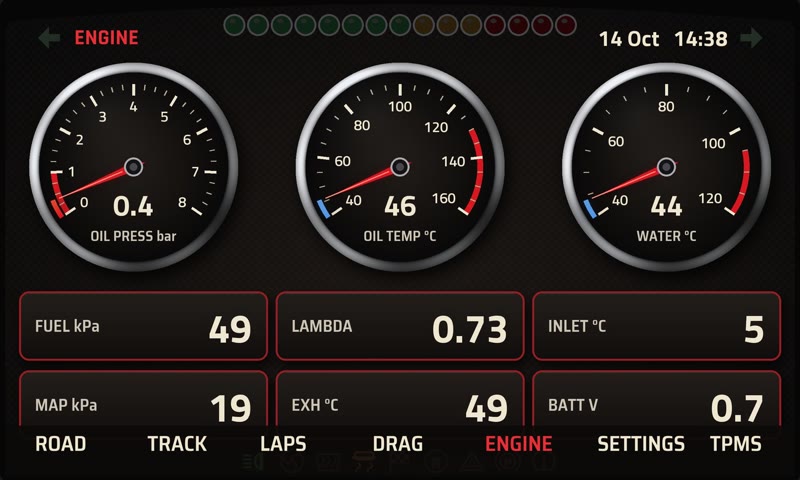
The Austin Mini page-select menu over the ENGINE page, with the current page highlighted. Kerbworks design render with simulated values.
Decide early whether Dash Manager or a Display Creator menu owns the page number. Mixing the two makes it hard to tell what moved the page, and Preserve Page, for example, is a Dash Manager setting for Display Page. The Menu element is described in the Display Creator 6.5 Help, so check the Help in your version.
Test the buttons, pages and pop-ups
On the PC, open Simulate and select Play. Only channels assigned to a signal or an input can be simulated, so you set Display Page and the pop-up trigger directly. The simulator tests the pages, not the keypad or the Dash Manager logic behind them.
Step Display Page through every value, including 0 and the highest.
Raise the pop-up trigger, drop it, and time how long the pop-up stays up.
Check the pop-up over every page, including any warning page.
Then test on the car. With Monitor Channels open in Dash Manager, press each button and watch the button channel and Display Page change. Check the ends of the range, two quick presses in a row, and what appears after switching off and on. The Quick Check guide covers errors that stop the simulator starting, and log playback.
A few common questions
How do I change pages on a MoTeC colour display with a button?
On a C-series display using Display Creator, select the button channels as Page Up and Page Down on the Page Selection tab of Dash Manager’s Display Setup. Include the Display Page channel in the DBC, then give each Display Creator page a condition on Display Page.
Where are MoTeC CAN keypad buttons set up?
MoTeC CAN keypads are configured in PDM Manager, where each button is given a channel that is true while it is pressed. The dash then has to receive the button over CAN, and the page change is set up in Dash Manager’s page settings.
Why doesn’t the page change when I press the button?
Check the chain in order: the button channel changes in Dash Manager’s Monitor Channels, it is selected as Page Up or Page Down, Display Page is in the DBC the project uses, Number of Pages matches the project, and each page’s condition uses Display Page.
How do I show a pop-up on every page?
Put it on Display Creator’s Overlay Page, which is always displayed over the current page with a transparent background. Place it in a Switch Group whose condition is true only while the pop-up should show.
Can the display remember the last page after switching off?
Yes, if Preserve Page is ticked in Dash Manager’s page settings. After a power cycle the display returns to the last page shown for at least five seconds; without it, the default page is shown.
MoTeC references
These are MoTeC’s documents and support replies behind the setup above, together with the built-in Help in Display Creator 6.5 and C127 Dash Manager 6.5. Menu names and available options can vary with the software version.
Tell me which buttons or keypad you have, how they’re connected and what you’d like each one to do. I can set up the page logic, menus and pop-ups around the controls in your car.
Run MoTeC Display Creator Quick Check, understand missing-channel and no-signal warnings, check fonts and DBC files, then test the project in the simulator.
What MoTeC Dash Manager and Display Creator each do, which software goes with the C125, C127, C1212 and other displays, and the order to set them up in.