KERBWORKS

Display Creator guides

Dash Manager or Display Creator: which MoTeC software does what?

Dash Manager sets up the display logger: what is connected to it, what it calculates, what it logs and what it shows. Display Creator designs custom screens. On a colour C-series display with a custom design, you use both.

Which Dash Manager you need depends on the display model. Whether you need Display Creator depends on whether the fixed layouts supplied in Dash Manager are enough for you.

What Dash Manager does

Each MoTeC colour display has its own Dash Manager: C125 Dash Manager for a C125, C127 Dash Manager for a C127, and so on. MoTeC describes it as the software for configuration, testing, retrieving logged data and general management of the display logger.

The C127 manual lists what that covers: which sensor is connected to which input and how it is calibrated, what to log and how fast, tacho range, warning alarms and multi-stage shift lights. Communications with an ECU and other devices, and calculations such as lap timing and fuel prediction, are set up here too.

You make these changes offline, in a configuration file on your PC. Nothing changes on the dash until you send that file to it.
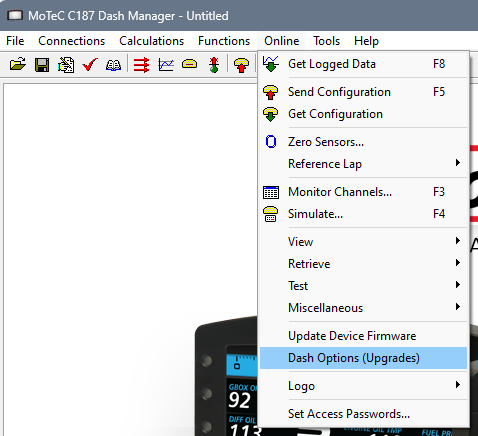
C187 Dash Manager with the Online menu open, listing Get Logged Data, Send Configuration, Monitor Channels, Update Device Firmware and Dash Options (Upgrades)
Dash Manager’s menus follow the job: Connections, Calculations and Functions for the setup, then Online for sending the configuration, getting logged data and updating firmware. This is MoTeC’s C187 example. Screenshot: MoTeC Technical Support.

Dash Manager also has its own fixed screen layouts. If you aren’t using Display Creator, this is where you choose the layout and the channels and labels it shows.
What Display Creator does

Display Creator is a free Windows application for designing the screens themselves: the layout, gauges, text, images, fonts, alarm and warning screens, and the pages you move between. MoTeC designed it for its colour displays and display loggers.

It doesn’t configure the hardware. It works with the channels Dash Manager makes available, through a DBC file that Dash Manager creates when you save a configuration set to use Display Creator. MoTeC’s Dash Manager Help says the channels in the two programs must be identical, and that the DBC is the preferred way to link them.

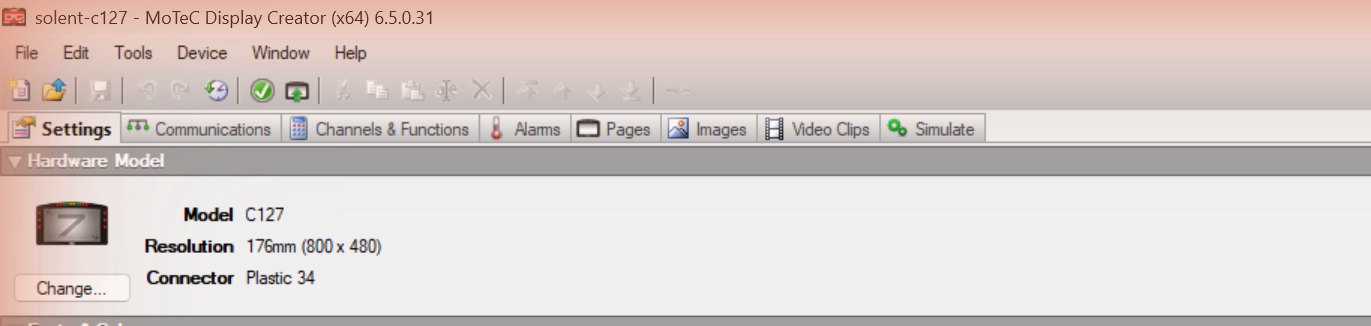
Display Creator 6.5 project for the marine example on a C127, with the Settings, Communications, Channels & Functions, Alarms, Pages, Images, Video Clips and Simulate tabs
Actual Display Creator 6.5 project from the marine example. The tabs are about the screens; the Communications tab is where the DBC from Dash Manager comes in.

You can build and simulate a project on your PC before the display is ready. The Quick Check guide covers checking and testing it before it goes to the car.

Which software goes with which display

Software for MoTeC displays, from MoTeC’s product and support pages
DisplayConfigured inCustom screens in Display Creator
C125, C127, C1212The Dash Manager for that modelOptional; needs the paid Display Creator enable
C185, C187, C1812The Dash Manager for that modelOptional; needs the paid Display Creator enable
D153, D175Dash Manager, when used with a C-series display or display loggerEnabled as standard; fixed layouts are also available
CDL3CDL3 Dash ManagerNot available

For a C-series display, Display Creator is free but the display needs the Display Creator enable before you send it a project. That guide shows how to check whether your display already has it.

The D153 and D175 receive data over CAN from M1 ECUs and MoTeC dash or enclosed loggers. C127 Dash Manager, for example, lists them as external displays using Display Creator. The CDL3 has a monochrome screen, and MoTeC’s display-logger comparison lists Display Creator as not available for it.

If your display isn’t in the table, check its product page and manual before buying software upgrades.

Fixed layouts or a custom project

The fixed layouts in Dash Manager let you choose the channels, labels and colour scheme, across three modes: Race, Practice and Warmup. If they show what you need, you don’t need Display Creator.

Display Creator is worth it when you want something the fixed layouts can’t do. MoTeC’s own documentation gives some clear examples:

  • More pages. MoTeC’s comparison lists three display modes, with more available through Display Creator.
  • Video beside your data. On fixed layouts, live video fills the whole screen. A Display Creator layout can show a video window alongside other information.
  • Text values. Where a channel has text values, Dash Manager’s Help says they appear on the display with Display Creator but not on fixed layouts.
  • Your own design. Your own gauges, images, logos, TrueType fonts, non-English labels and warning screens.
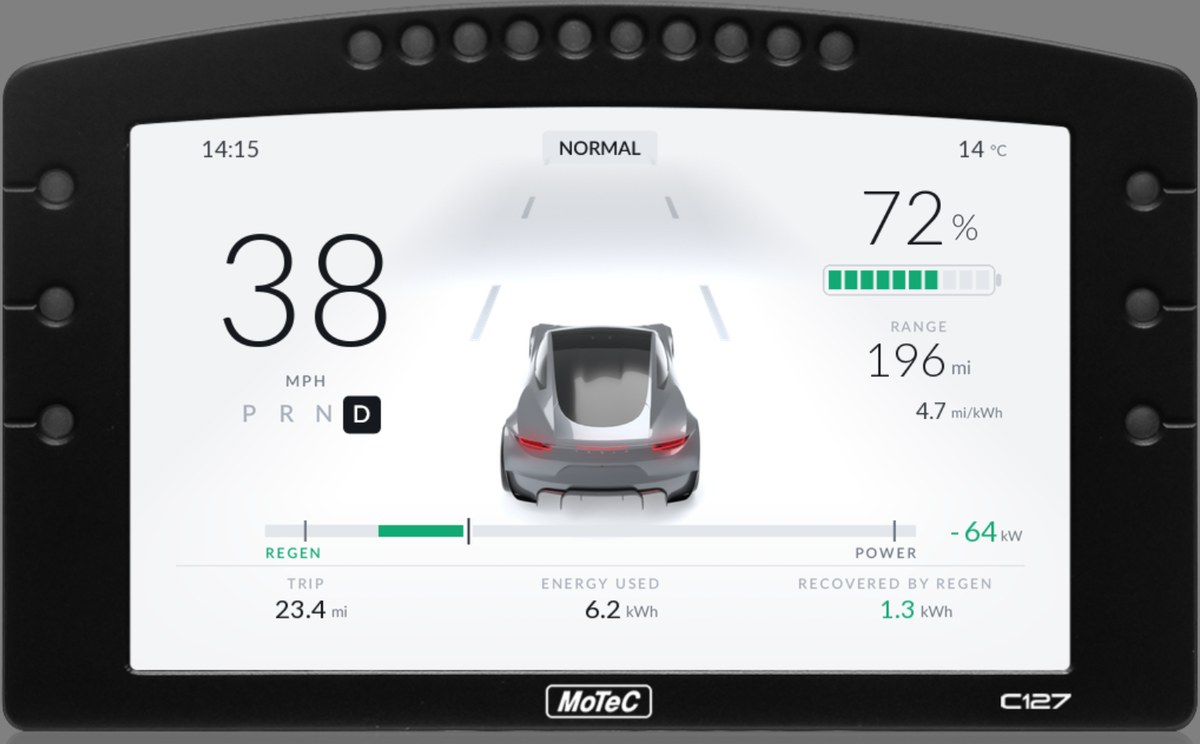
Electric car example’s DRIVE page in Display Creator’s simulator: 38 mph in D, 72% battery, 196 miles range and the regen bar at minus 64 kW
A fully custom page from the electric car example, running in Display Creator’s simulator with simulated values.

I’d decide this before buying the enable. Write down what you want to see on each page, then compare it with the fixed layouts in your Dash Manager.

The order I work in

I start in Dash Manager. The C127 manual recommends setting up connections, then calculations, then functions such as logging, display and alarms, because a channel can’t be used until an input, calculation or function generates it. The screens follow the same rule: a value has to exist before you can show it.

  1. In Dash Manager, set up the inputs, communications and calculations, and check that the channels you need exist.
  2. Set the display to Internal Display (using Display Creator), add the channels the screens need and fill in the page settings. The number of pages should match the Display Creator project.
  3. Save the configuration to generate the DBC, then send the configuration to the display.
  4. In Display Creator, start a project for your hardware model and import the DBC on the Communications tab.
  5. Build the pages, run Quick Check and test them in the simulator, then send the project to the display.

The enable guide goes through the Dash Manager side in more detail, alongside MoTeC’s illustrated walkthrough.

Keep the two halves matched

To add or remove a channel, change the channel list in Dash Manager and save it. If Display Creator is open, MoTeC says it detects the change and prompts you to update the DBC. Then send both changed configurations to the display.

Versions matter as well. Dash Manager’s Help says the display firmware must match the Dash Manager version on your PC before they will communicate. A mismatch between the DBC from Dash Manager and the one in the Display Creator project is one of the two usual causes of CAN Comms Timeout in MoTeC’s support article.

If you send me a project to look at, include the display model, the Dash Manager configuration, the DBC and the Display Creator project, with the software versions. That way I can see both halves together.

A few common questions

Do I need Dash Manager if I use Display Creator on a C127?

Yes. C127 Dash Manager configures the display’s inputs, communications, calculations and logging, creates the DBC that Display Creator imports, and sends that configuration to the display. Display Creator designs the screens.

Which MoTeC software do I need for a C125?

C125 Dash Manager configures the display and its fixed layouts. For custom screens you also need Display Creator, which is free, and the paid Display Creator enable on the C125.

Is there one Dash Manager for every MoTeC display?

No. MoTeC publishes a separate Dash Manager for each colour display model, including the C125, C127, C1212, C185, C187 and C1812. Use the one for your model; the display firmware must match its version.

Do the D153 and D175 need the Display Creator enable?

No. MoTeC says D-series displays are enabled for Display Creator as standard. They also have selectable fixed layouts.

Can I use Display Creator with a CDL3?

No. MoTeC’s display-logger comparison lists Display Creator as not available for the CDL3, which is configured in CDL3 Dash Manager.

MoTeC references

These are the manufacturer’s sources behind the setup and specifications above. Menu names and available options can vary with the software version.

Want a hand with your display?

Tell me your display model and send the Dash Manager file if you have one. I can help you work out what belongs in each program before we start the design.

Tell me about your display

Guides

More Display Creator guides