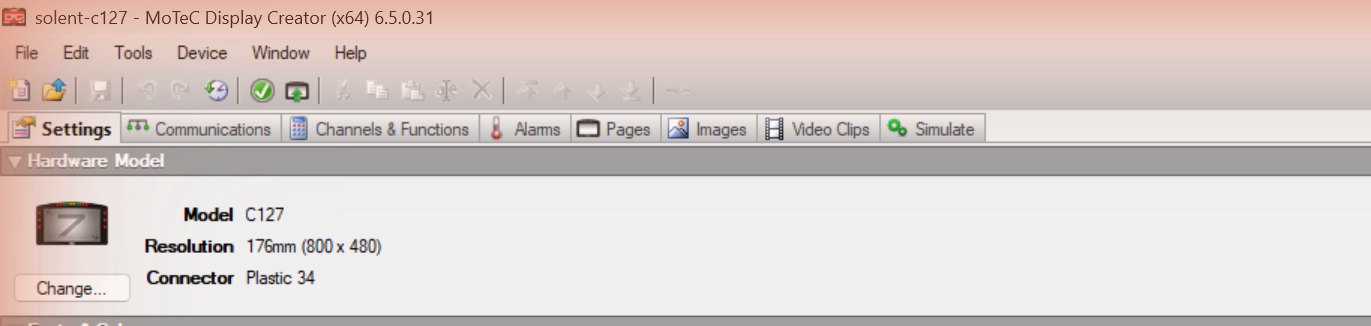
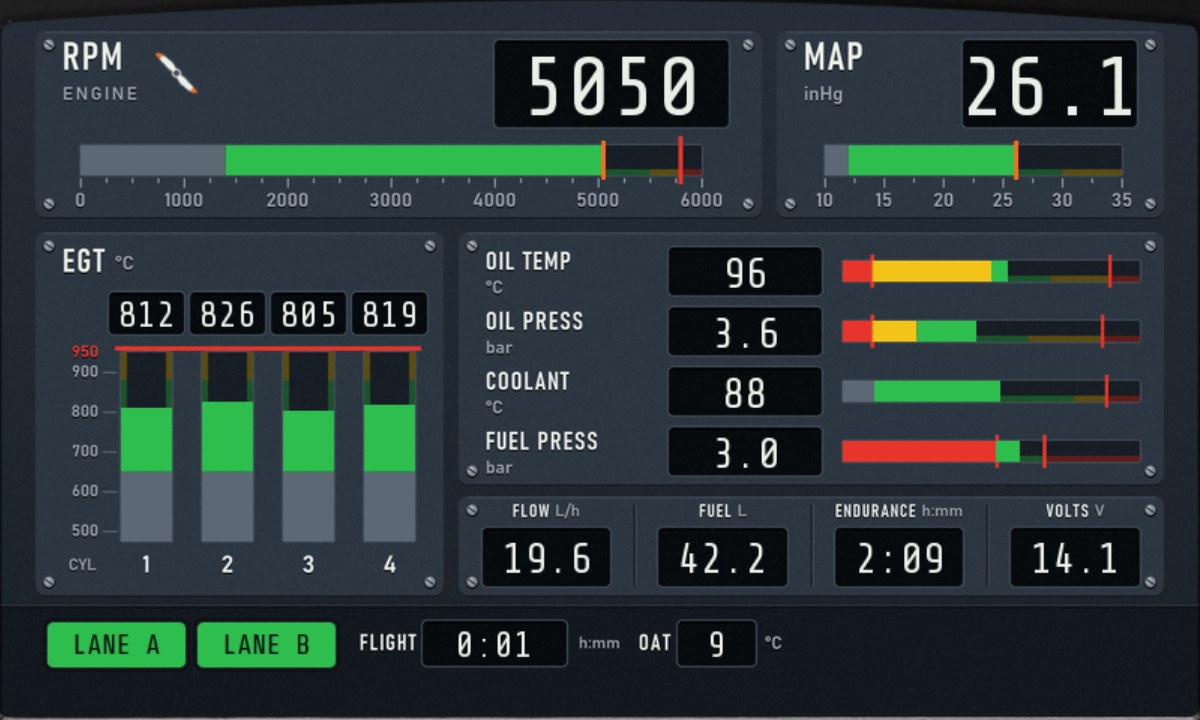
Dash Manager’s help describes the CAN bus connecting ECUs, MoTeC devices and third-party devices. A non-MoTeC ECU is fine, as long as you know what it transmits. The route looks like this:
- Get the ECU’s CAN definition. Link and Haltech, for example, publish details of the data their ECUs send on CAN. Ask for the one that matches your ECU and the CAN stream it is set to send.
- Bring it into Dash Manager. In Connections → Communications, select a communications template for the device or use Import DBC. If you only have a written protocol, you can set up a custom template there instead.
- Set the bus and bit rate. Specify the CAN bus the ECU is wired to and set that bus’s bit rate. MoTeC’s help notes that MoTeC devices are typically on one bus, leaving the other free for third-party devices that may run at a different speed.
- Pass the channels to the display. Add the ones you want on the pages to the channel list in Display Setup, save, and update the DBC in Display Creator.
Dash Manager’s DBC import has limits worth knowing. It handles signed and unsigned signals but not IEEE float or double; those are not imported, and you get a warning. It allows up to 64 communications templates across all CAN buses, so with a larger DBC you choose which messages to bring in.
On a C-series dash, an M1 is set up in Dash Manager’s communications like any other CAN device. With a D-series display on the same CAN bus as the M1, MoTeC’s support article describes reading the M1’s messages directly, from a DBC loaded into the Display Creator project.