KERBWORKS

Display Creator guides

C125, C127 or C1212: which display suits your dash?

I’d start with the space in the car and what you need to read at a glance. A bigger display is useful if it makes the important information clearer; it isn’t a reason to fill every spare corner.

The C125 and C127 have the same pixel resolution at different physical sizes. The C1212 adds a much wider canvas. That difference matters when planning a custom layout.

The screens at a glance

Published screen specifications and Display Creator upgrades
ModelNominal screenResolutionEnable
C1255-inch800 × 48029616
C1277-inch800 × 48029816
C121212-inch1280 × 48029856

The C125 has 10 programmable RGB LEDs and the C127 has 16. Follow the model links above for MoTeC’s full specifications and drawings. Screen diagonal is not the case size, so use the drawing for the exact unit when planning the mount and clearance.
C125: keep the essentials easy to read

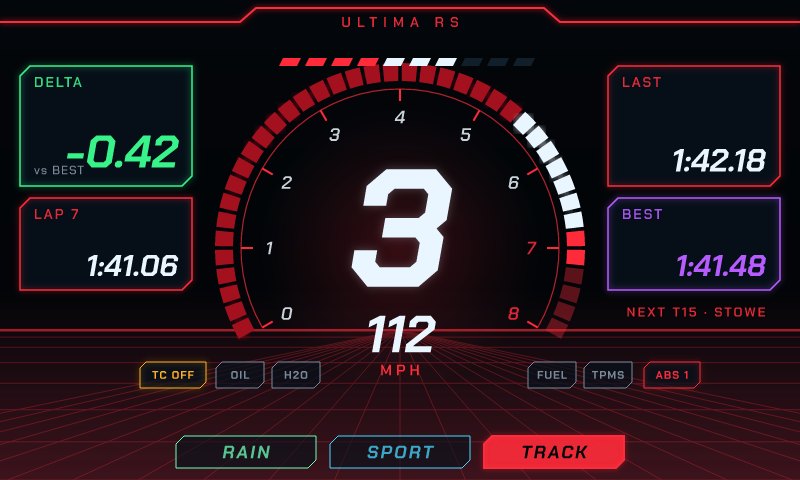
The C125 is worth considering where mounting space is tight. Its 800 × 480 pixels can carry a detailed design, but the physical screen is smaller than the C127. Give gear, revs and critical warnings enough room, then decide which secondary values deserve a place on the driving page.

Ultima C125 Track page with a large central gear indicator, rev arc and lap timing
The Ultima C125 driver page puts gear and revs in the centre, with lap information to either side. Kerbworks design render with simulated values.

Detailed engine information can have its own page. That gives you somewhere to check temperatures and pressures without squeezing every value onto the screen you use while driving.

C127: the same pixels, at a larger size

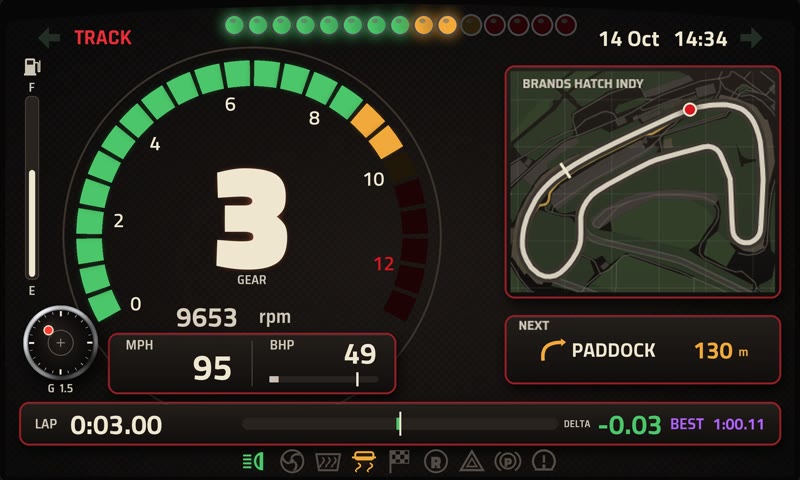
The C127 makes the same 800 × 480 layout physically larger. It also adds six RGB LEDs compared with the C125. I’d consider it for a road-and-track car where there is room for a larger main display.

Austin Mini C127 TRACK page with a rev arc, gear indicator and circuit map
The Austin Mini C127 layout keeps gear and revs prominent beside a map and next-corner panel. Kerbworks design render with simulated values; map surroundings © OpenStreetMap contributors.

Don’t use the extra physical size as an excuse for small text. Check it from the driver’s seating position, with the steering wheel in place. The best-looking page on a laptop may need a simpler arrangement in the car.

C1212: plan for the width

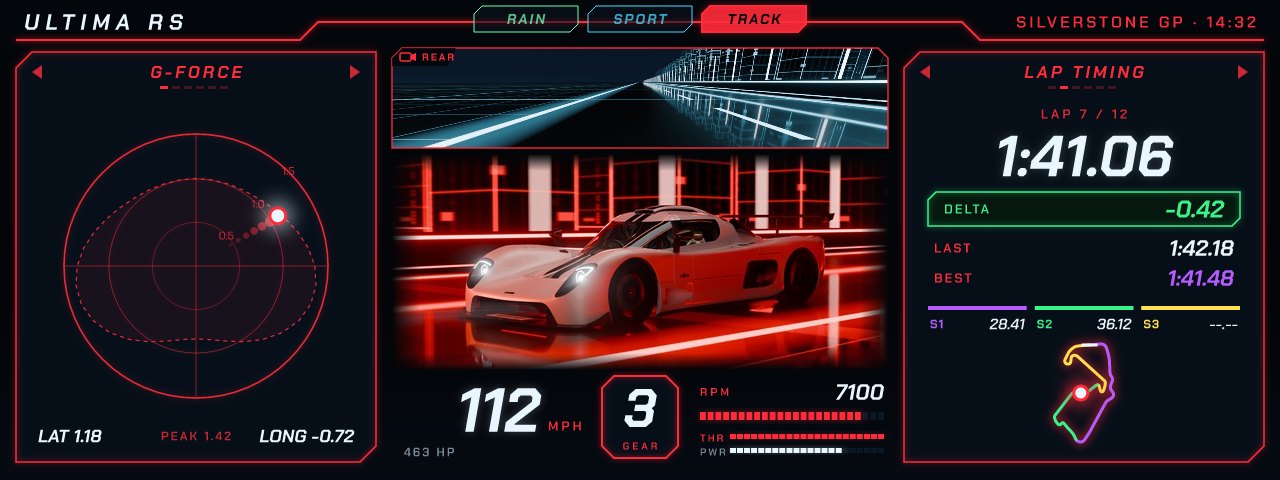
The C1212 is 1280 × 480 pixels: the same pixel height as the other two, with 60% more width. That opens up space for a map or video beside the driving information, or separate areas for a passenger or co-driver.

Ultima C1212 passenger page with G-force, video and vehicle imagery, plus lap timing and a circuit map
The Ultima C1212 uses the width for separate information areas. Kerbworks design render with simulated values; the video area is shown as part of the design.

I’d lay out those areas deliberately instead of stretching an 800-pixel-wide page across the screen. Decide what the driver needs, what a passenger will use and which information can move to another page.

Check the hardware model in the project

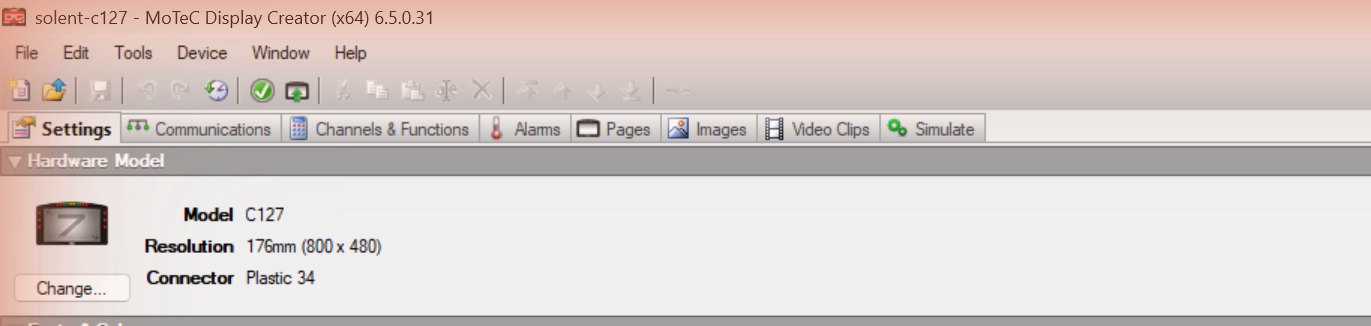
Open the Settings tab in Display Creator and check Hardware Model. The screenshot below shows the C127 selected for the marine example.

Display Creator 6.5 Settings showing C127 hardware model and 800 by 480 resolution
Actual Display Creator 6.5 Settings view from the marine example. The model is C127 and the pixel resolution is 800 × 480.

Display Creator can change the target hardware and resize elements, but that still needs a design review. Check the layout, text, images, controls and alarms in the simulator for the target model. MoTeC’s setup guide starts with selecting the hardware being used; the built-in Settings Tab help explains model changes.

Check the enabled options as well as the screen

The three models share core connections and optional capabilities. MoTeC lists two CAN buses, two RS232 ports, two digital inputs, three speed inputs and composite video. The I/O upgrade adds analogue inputs and low-side outputs. Logging is a separate option; check the actual unit rather than assuming it is included. The MoTeC display-logger overview is a useful comparison.

Each also needs its own Display Creator enable to run a custom project. If you’re buying a used dash, ask for its enabled-options list as well as the model.

How I’d make the choice

Measure the available space, check the mounting drawing and decide on the information that matters while driving. Then compare a simple page layout on each suitable size.

  • C125: worth a look when space is tight and the driving page can stay focused.
  • C127: a larger view of the same pixel canvas, useful for a main road-and-track display.
  • C1212: room for a wider arrangement, a cluster replacement or a passenger display.

The portfolio shows what I’ve built on these displays. If you already own one, I can design around it or review an existing project before moving it to another model.

A few common questions

Does the C127 have more pixels than the C125?

No. Both are 800 × 480 pixels. The C127 has a physically larger screen and 16 RGB LEDs, compared with 10 on the C125.

How much wider is the C1212 layout?

Its canvas is 1280 × 480 pixels, giving 60% more horizontal pixels than an 800 × 480 C125 or C127 project.

Can I move a project between models?

Display Creator supports changing the hardware model and resizing elements. Review the resulting layout, controls and alarms, run Quick Check and check the target model in the simulator before sending.

Do these models include logging and Display Creator as standard?

Check the enabled options on the actual unit. Logging and the Display Creator enable are listed as upgrades for these models.

MoTeC references

These are the manufacturer’s sources behind the setup and specifications above. Menu names and available options can vary with the software version.

Want a hand with your display?

Send a photo of the dash area, the display you have or are considering, and the information you want to see. I’ll help you work out a sensible layout.

Tell me about your display

Guides

More Display Creator guides