KERBWORKS

Display Creator guides

Display Creator Quick Check: finding and fixing project problems

If a project won’t simulate or send, start with Quick Check. It checks the configuration and points you towards problems that need attention.

Work through the messages, fix the cause and run it again. Once the project is clear, use the simulator to check that the pages actually behave as you intend.

Run the check and read the result

  1. Save your project.
  2. Choose Tools → Quick Check, or use the Quick Check toolbar button.
  3. Read the result and any entries in the Project Validation Messages pane.
  4. Find the referenced item, correct it and run the check again.

The marine example below shows a C127 project with no errors or warnings. It gives you a useful reference for a clear result.
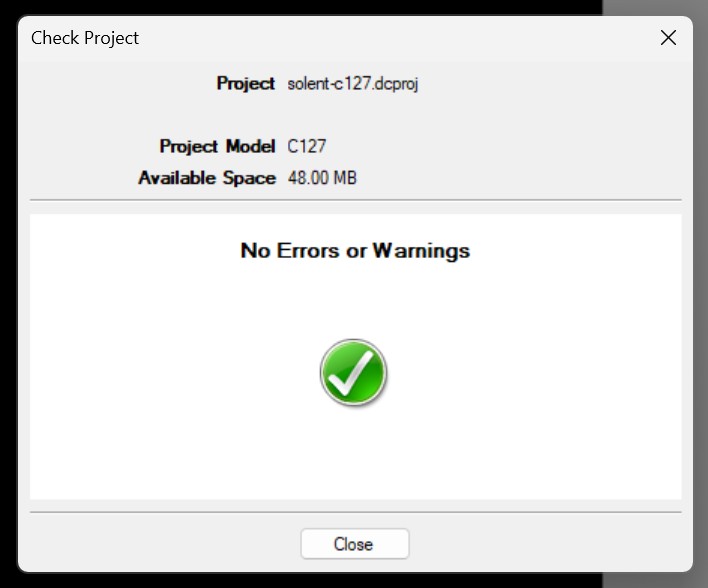
Display Creator Check Project dialogue for the marine example’s C127 project, reporting No Errors or Warnings
Actual Quick Check result from the marine example’s C127 project: no errors or warnings.

The menu and message-pane behaviour are described in Display Creator’s built-in Project Checking and Validation help. You can get the software, including its Help, from MoTeC’s Display Creator page.
Errors and warnings need different attention

MoTeC’s Warnings and Errors help makes the distinction clear: an error prevents sending or simulating. A warning does not prevent either, but still points to something that is not working properly.

I’d fix the specific issue before moving on. If a message names a channel, start there; changing an unrelated page or communications setting can make the original fault harder to follow.

Channel warnings described in MoTeC’s Display Creator Help
What you seeWhat to check
An exclamation mark beside an element using a channelA required channel may not be selected. Open the element’s properties and assign the intended channel.
A deleted-channel error in PropertiesThe element refers to a channel that has been removed. Restore the channel or select its replacement.
An exclamation mark in a squareThe channel is selected but has no signal assigned. Check its source and communications assignment.

Use the message and the item’s properties together. The plain exclamation mark can also remain in the element tree after a referenced channel has been deleted.

Follow a missing value back to its source

For a C-series project, the DBC generated by Dash Manager describes the channels available to Display Creator. If you’ve added or changed those channels, save the Dash Manager configuration and select or update the matching DBC on Display Creator’s Communications tab.

MoTeC’s setup walkthrough explains how the files fit together. Its CAN Comms Timeout guide also shows the DBC update check.

Then check the element itself. A value can still be wrong if it uses the wrong channel, units or display format. Follow the same value from the source, through Dash Manager and the DBC, to the item on the page.

Check the default font and any shared styles

The project needs a default font on the Settings tab. MoTeC’s Help says the configuration is invalid without one.

If the project came from another PC and some text looks different, check which font it expects and whether that font is available. Also inspect any shared text style: changing a style can affect several labels at once. Check the result at the size used on the display, especially small units, warning labels and number fields.

Test the behaviour in the simulator

Open Simulate and select Play. For channels that have a signal or input assigned, you can choose the channel and change its value with the slider or value field. Project errors need resolving before the simulation will start.

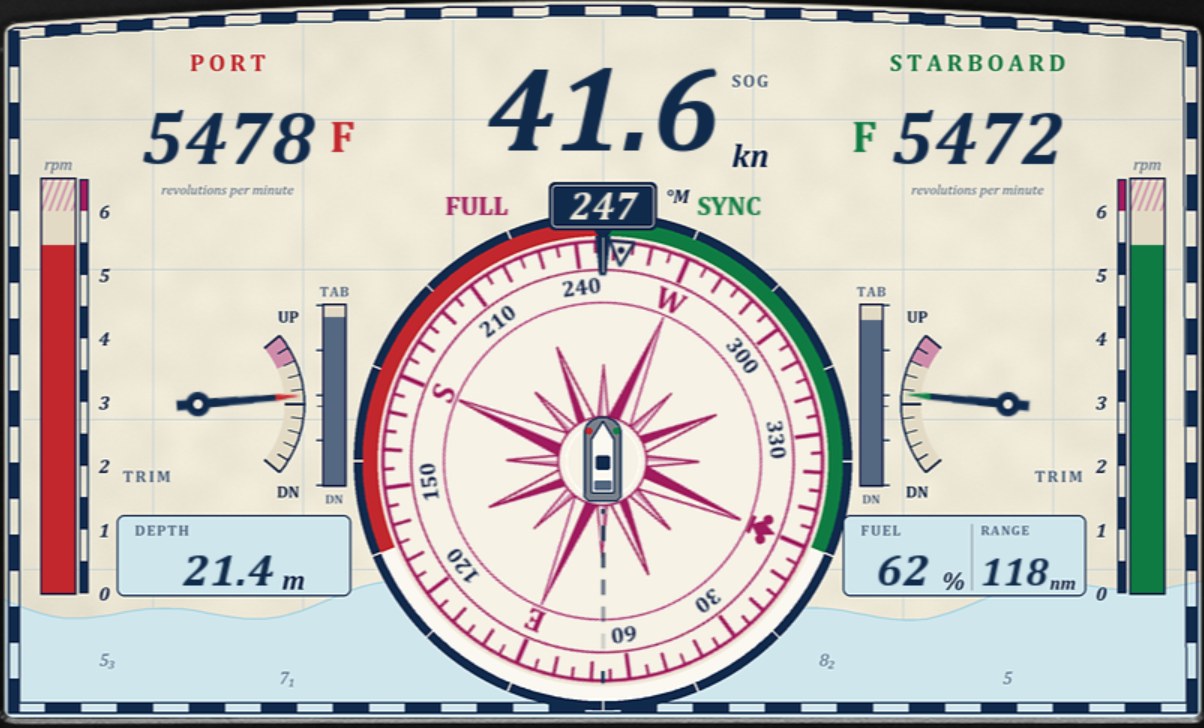
Marine example’s HELM page in the Display Creator simulator, with speed, engine and navigation values
Actual Display Creator simulator view from the marine example, using simulated values.

Try the values that make the design work hardest: below and above an alarm threshold, the largest number a field should show, each gear, and every page-change condition. Check that warnings appear, clear and leave the right page visible.

For a recorded run, open a suitable log in i2, build the simulation and use Connect to connect Display Creator to i2. Play the log or move the cursor through it. The built-in Simulate Tab help explains both manual testing and log playback.

If it passes but the dash still has a problem

A clear project check is useful, but it cannot prove that a sensor is wired correctly or that the live signal reaches the display.

For CAN Comms Timeout, start with the Display Creator enable and the matching DBC; these are the two usual causes covered by MoTeC’s support article. For a missing or incorrect live reading, work back through the channel assignment, Dash Manager configuration and signal source.

If you’d like me to look at it, include the display model, software versions, the exact message or a screenshot, and the matching project, Dash Manager file and DBC. That gives me enough context to start with the actual problem.

A few common questions

Where is Quick Check?

Choose Tools → Quick Check, or use its toolbar button. If validation fails, read the Project Validation Messages pane.

Can I send a project with warnings?

MoTeC’s Help says a warning does not stop sending or simulation, but it still indicates something that is not working properly. Resolve the cause before treating the project as ready.

Why won’t the simulator start?

Project errors prevent simulation. Run Quick Check, correct the reported errors and try again.

What does the exclamation mark in a square mean?

The channel is selected but has no signal assigned. Check the channel source and communications assignment.

Why does Quick Check pass but the dash show CAN Comms Timeout?

Check the Display Creator enable and whether the project uses the DBC generated by the matching Dash Manager configuration. MoTeC lists these as two usual causes.

MoTeC references

These are the manufacturer’s sources behind the setup and specifications above. Menu names and available options can vary with the software version.

Want a hand with your display?

Send me the message and the matching files, and tell me what you expected the page to do. I can review the project and help you work through the cause.

Tell me about your display

Guides

More Display Creator guides